Troubleshoot Windows Steps Recorder: availability and alternatives
When Steps Recorder (PSR) is missing or a saved recording is difficult to share, check Windows availability, the deprecation notice, and current alternatives.
Publication & corrections: infostoa · Editorial standards
Individual author and specialist reviewer information is not provided for this article.
Steps Recorder captured desktop screenshots with annotated steps to help reproduce a problem. Microsoft says it is no longer being updated and will be removed in a future Windows release. Old how-to pages therefore should not be treated as proof that the tool is available on every current PC; first check the Windows installation in front of you.
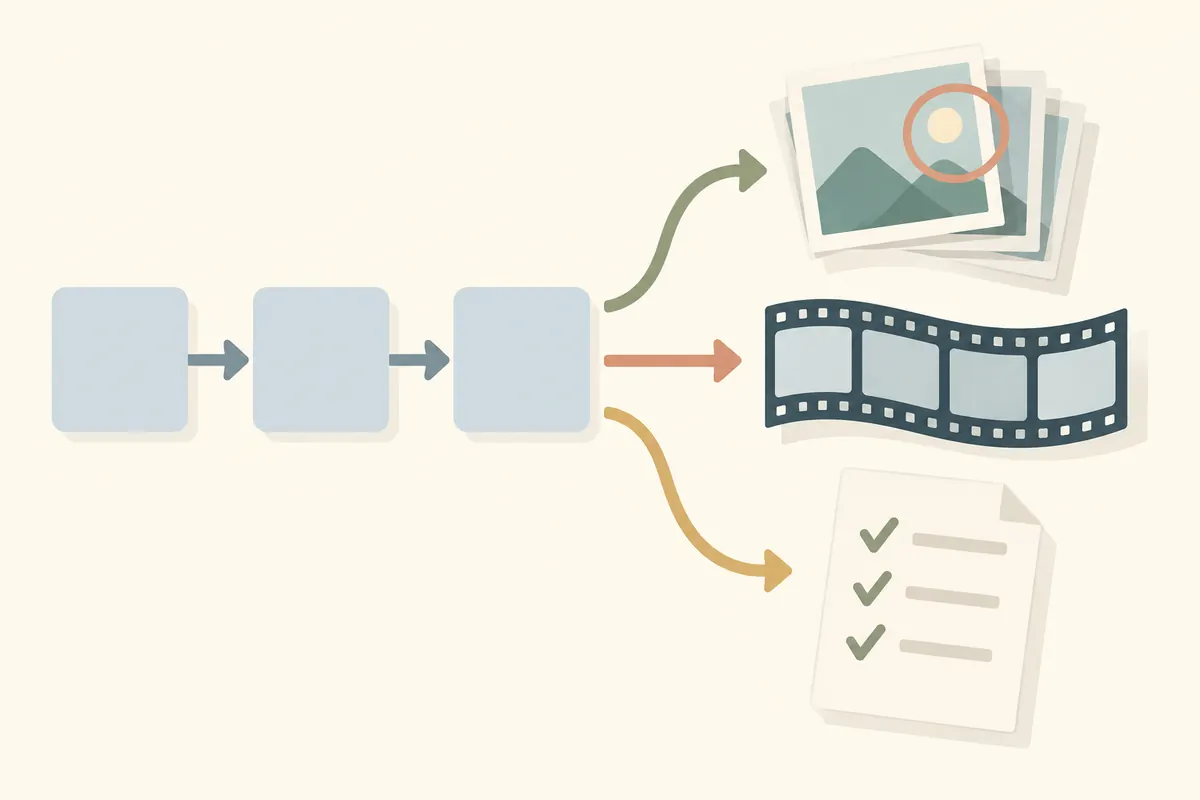
Conceptual illustration, not a Windows screenshot or tool run.
Check availability on this installation
Search the Start menu for “Steps Recorder” or “PSR.” If it appears and opens, confirm its status before trying a short capture. If it is absent or fails to start, check the Windows version and update state rather than assuming a damaged profile. Microsoft’s deprecated-features list says PSR is no longer updated and is planned for removal in a future release, but that wording alone does not establish whether a particular device still has it. Avoid repairing it with installers from unrelated download sites.
If it still opens, capture only a short reproduction
Record the minimum steps needed to reproduce the issue, stop soon after it occurs, and save the result. PSR captures screenshots while you work, so notifications, account names, documents, and browser pages may become part of the file. Review the captured images and annotations before sharing; send a redacted copy when they include private or organizational information. On a managed PC, follow the support and retention rules for that device.
If saving fails, check free space and write access to the destination, then try a new file in another approved folder. These steps apply only when the tool is actually present. If policy blocks it or the app is unavailable, repeated launch commands and copied executables are not a reliable recovery path; move to a supported alternative.
Expert perspective: choose a replacement by the evidence needed
Microsoft Support’s Steps Recorder deprecation guidance describes its step-and-screenshot capture and recommends Snipping Tool, Xbox Game Bar, or Clipchamp as alternatives. The practical distinction is that a video shows timing and motion but does not automatically provide the same annotated sequence of discrete actions. Choose according to the support question: a short screen segment for a visual glitch, Game Bar for gameplay, or reviewed screenshots plus a written reproduction when individual steps matter. Remove sensitive details before sending any recording.