Windows Dynamic Lock: Setup Checks and Bluetooth Limits
Dynamic Lock is a supplementary lock that depends on a paired phone’s Bluetooth signal and an idle PC. Learn where to check it and why it promises no fixed distance or exact lock time.
Publication & corrections: infostoa · Editorial standards
Individual author and specialist reviewer information is not provided for this article.
Windows Dynamic Lock attempts to lock a PC when the Bluetooth signal from a paired phone weakens and Windows is idle. Carrying the phone away does not lock the PC immediately, and the feature does not replace manual locking.
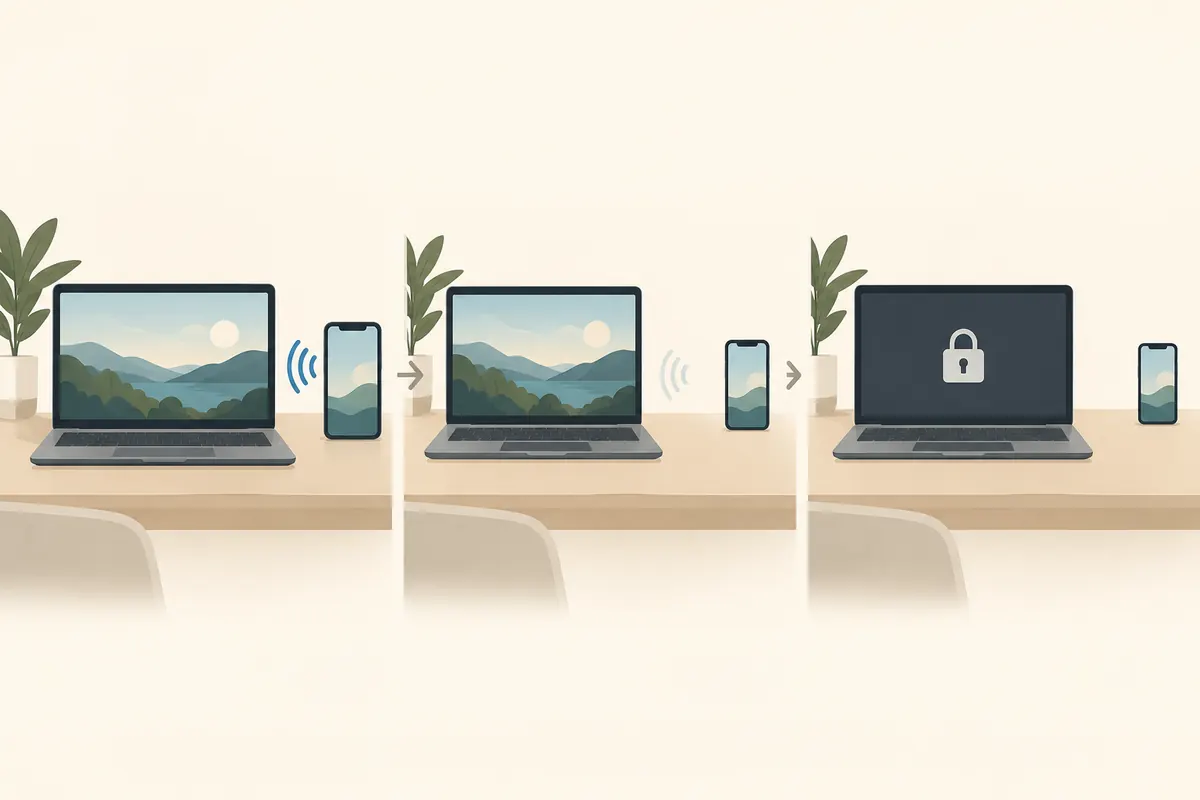
Where to find it and what to check
In Windows 11, look under Settings > Accounts > Sign-in options. Microsoft notes that some settings may be unavailable depending on device configuration. Dynamic Lock may also appear in Windows 10 sign-in options, but labels and availability can vary by version and management policy. If the option is missing, check whether the PC is managed; ask its administrator before changing organizational policy.
To use it, turn on Bluetooth on the PC, pair the phone, and enable Dynamic Lock. Microsoft’s user guide says Windows will lock within a minute after the phone leaves Bluetooth range, but its technical documentation gives the key conditions: the paired phone’s signal must fall below a threshold and the PC must be idle. Signal measurements vary by environment and device, so do not treat a particular distance, number of steps, or number of seconds as a guarantee.
Check the behavior safely
Save your work and use a non-sensitive session. Carry the paired phone away and watch for the Windows lock screen. A delay or no lock does not by itself prove the feature is broken: the PC may still be active, the Bluetooth pairing may differ from what you expect, or a management policy may affect availability.
For example, if you keep typing after taking the phone away, the idle condition may not be met and the PC may stay unlocked. This is a hypothetical example of the documented condition, not a device test. To troubleshoot, confirm that Dynamic Lock is on, Bluetooth is enabled, and the phone remains paired. If you need to step away while diagnosing it, press Win+L. Seeing the lock screen after Win+L confirms manual locking only; it does not test Dynamic Lock.
What it can and cannot protect
Dynamic Lock does not sign you in when the phone returns, and it is not a proximity sensor that promises an immediate lock. Microsoft Learn describes it as an extra barrier that can reduce risk if someone forgets to lock the PC. Lock manually when leaving sensitive work, and keep suitable sign-in protection and any organizational auto-lock policy in place. Administrators should test signal-policy settings on representative devices and in each target environment before wider deployment.