The HTML Popover API: Top-Layer Display and Dismissal Behavior
The Popover API displays non-modal content in the top layer while leaving it in its DOM position. This guide compares auto and manual dismissal, distinguishes popovers from dialogs, and covers invokers and accessible interaction.
Publication & corrections: infostoa · Editorial standards
Individual author and specialist reviewer information is not provided for this article.
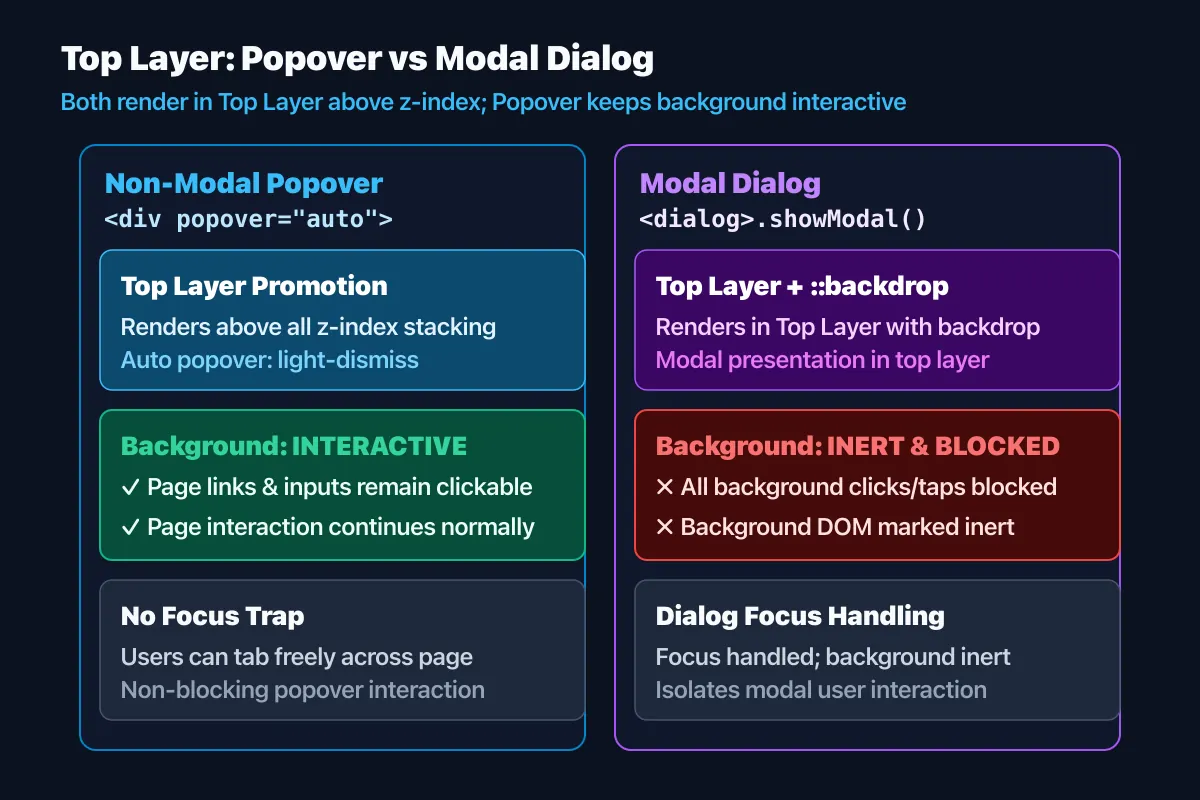
The HTML Popover API displays non-modal content such as a menu or help panel over a page. When shown, an element with the popover attribute is placed in the top layer, avoiding ordinary stacking-context conflicts while remaining in its original DOM position. A popover does not automatically block interaction with the rest of the page like a modal dialog, so the two patterns are not interchangeable.
1. Declarative popovers and invokers
An element with the popover attribute starts hidden and can be connected to a button using popovertarget and the target ID. The browser knows the invoker relationship and provides the default display behavior. JavaScript can also use showPopover(), hidePopover(), and togglePopover() to change state. When combining declarative and scripted control, ensure application state does not drift from the actual visible state.
Displaying an element in the top layer does not copy it or move it to a different DOM parent. Source order, event paths, and accessibility relationships still matter. Make focusable content inside the popover reachable by keyboard and provide an accessible name and purpose. A visually floating element does not become an accessible dialog merely because it is above the page.
2. Dismissal rules for auto and manual
popover=auto provides browser-managed dismissal behavior. It generally supports light dismissal, such as an outside click or Escape, and tracks the relationship with the element that opened it. Do not assume that any number of independent auto popovers will remain open without affecting one another; plan for opening order and nesting. The actual interaction can depend on how the popover was opened and what other popover states exist in the document.
popover=manual is useful when automatic light dismissal is not desired. The browser does not close it simply because the user clicks outside, so the page needs to provide an explicit way to close it. That may suit a notification or panel intended to stay open, but include predictable exit behavior such as a close button and any required Escape handling. Auto and manual change interaction and state policy, not just appearance.
3. Popovers and modal dialogs serve different roles
A popover is appropriate for a non-modal overlay. Users can continue interacting with other parts of the page while it is open. A modal dialog temporarily constrains the user's flow and limits interaction with the background. A small menu or supplemental information may fit a popover; a flow that requires a decision or blocks background actions needs dialog semantics and behavior to be considered separately.
Modal dialog element elements and popovers can both use the top layer, so their stacking order cannot be predicted only from z-index values. When a page uses both types, test which overlay should open and close first in the actual user flow. Do not assume that a popover traps focus or makes the background inert; implement the needed keyboard movement and focus return for its role.
4. Expert perspective: test state and input flow
The WHATWG HTML Standard defines the popover attribute, auto and manual states, invokers, top-layer presentation, and show or hide algorithms. MDN describes markup and JavaScript control and distinguishes the API from dialogs. The practical question is not only whether a show method was called, but whether state changes as intended after Escape, an outside click, or another activation of the invoker.
Test the same flow with a keyboard, pointer, touch input, and zoomed content. Use auto popovers for short menus or help that should light-dismiss; for manual popovers, define the close policy and provide a way out. Do not assume the API supplies complex menu keyboard behavior or modal blocking automatically. Testing role, accessible name, and focus movement keeps the visual top-layer effect separate from usable interaction.